
OpenStreetMap for Confluence
Learn how to embed interactive map location in your Confluence pages.
Interactive Maps
OpenStreetMap for Confluence renders interactive maps directly on your page, providing a seamless experience for your readers.
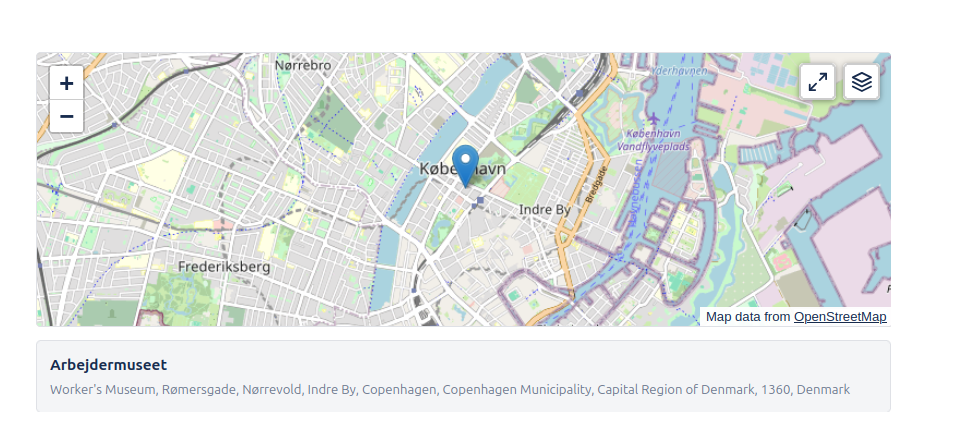
Each embedded map comes with essential controls for navigation:
- Zoom Controls: Easily zoom in and out to see the level of detail needed.
- Layer Selection: Switch between different map styles on the fly.
- Full Screen: Expand the map to fill the entire browser window for better exploration.
Getting Started
The OpenStreetMap for Confluence app allows you to insert interactive maps as macros directly into your pages.
- Install the App: Get the app from the Atlassian Marketplace.
- Edit a Page: Go to any Confluence page and click Edit (pencil icon).
- Insert Macro: Type
/mapor/osmand select "OpenStreetMap for Confluence" from the menu.
Configuration
Once you insert the macro, the configuration dialog will open.
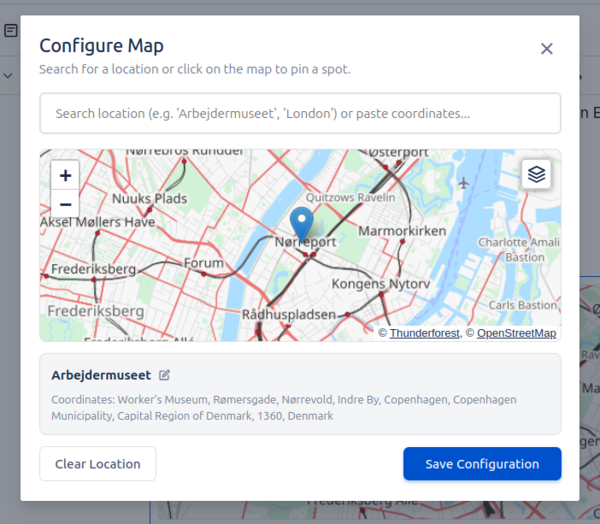
- Search Location: Use the search bar at the top left to find a specific address or point of interest. The map will fly to that location.
- Click to Select: You can also click anywhere on the map to set the location marker specifically to that spot.
- Set View: Zoom the map to frame exactly what you want your users to see. The exact view you see in the preview will be saved.
- Live Preview: See exactly how the map will look on the page before you save.
Layer Selection
You can choose from four different map layers to best suit your content. This can be done both during configuration and directly on the page by viewers.
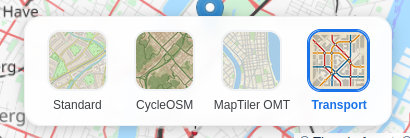
- OpenStreetMap: The standard, highly detailed map view used globally.
- CyclOSM: Optimized for cyclists, highlighting bike paths and terrain.
- MapTiler OMT: A vector-based map style powered by MapTiler, offering crisp and clean visuals.
- Transport: Focused on public transport networks and major roads.
Note: MapTiler OMT and Transport layers require API keys for full functionality. Administrators can configure these in the App Settings.
Full Screen Mode
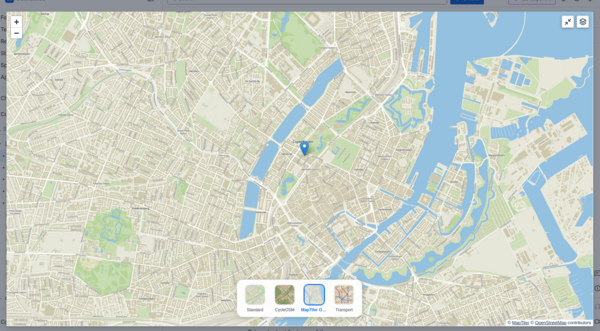
You can enter full screen mode at any time by clicking the expand to full screen icon in the top right corner. This expands the map to fill the entire screen, giving you more space to explore.
Settings
Administrators can configure app-wide settings from the Confluence administration panel.
Default Map View
Set a global default view for new maps. This ensures that when users insert a new map macro, it starts focused on a relevant location.
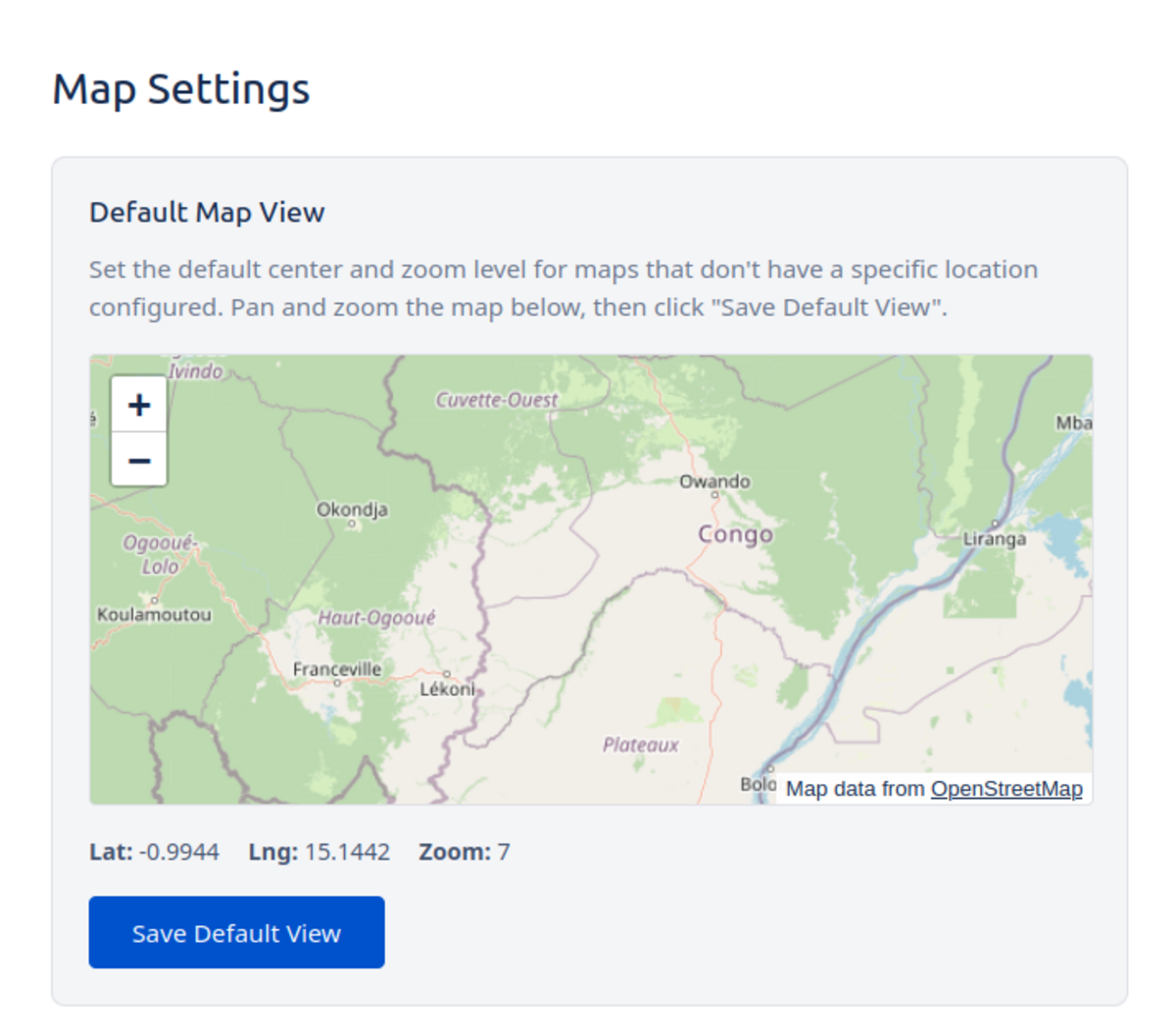
Global Default Map Settings
Map Tile Keys
Configure API keys for alternative tile providers to ensure reliable access to premium map styles.
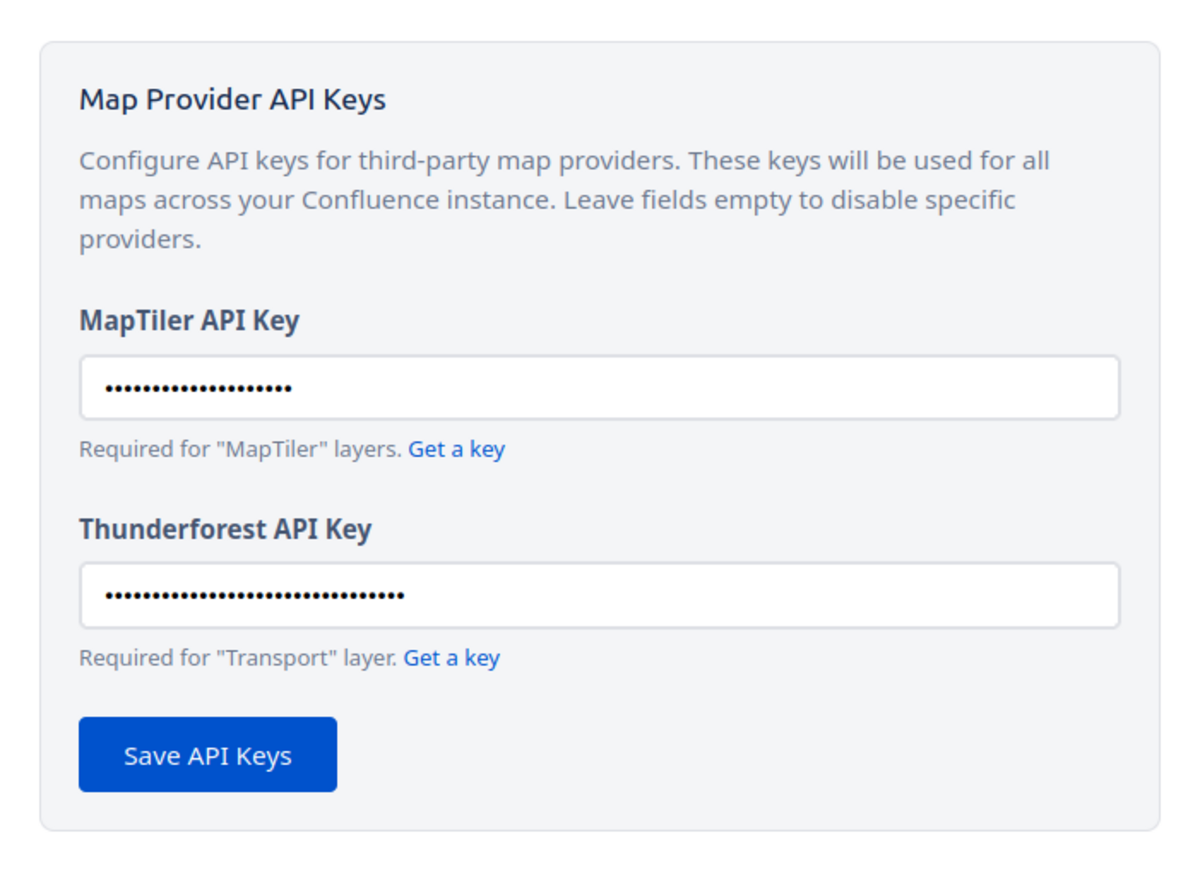
API Key Configuration
You can add your own API keys for the two alternative tile providers (MapTiler and Thunderforest for Transport) in the app settings. This is useful if you have your own commercial licenses or need higher usage limits.
FAQ & Support
Does this app track my users?
No. The app runs client-side in the browser. We do not track individual user activity or store any personal data. Please see our Privacy Policy for more details.
Can I add multiple locations per embed?
Not yet but we plan to add this. Let us know at [email protected] if this is something you'd like to have.
I'd like to see feature xyz...
Please let us know at [email protected]! We'll look at adding features customers would like to see.
Need Help?
Ready to map?
Install OpenStreetMap for Confluence from the Atlassian Marketplace.